How to Do a Website Audit, Step by Step
 By Prabhav Lamichhane11 min readPublished · Last checked
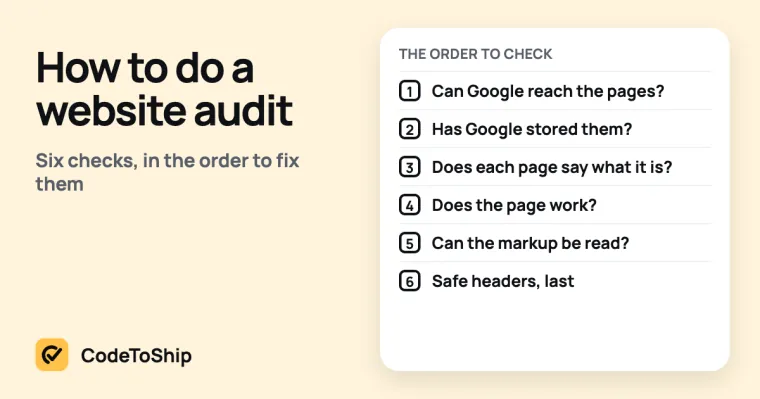
To audit a website for SEO, check six things in this order, then fix them in the same order.
- Google can reach your pages
- Google has stored them
- Each page says what it is about
- The page works
- The markup can be read
- The site sends safe headers
An SEO audit only: not accessibility, UX or content audits.
For the plain definition, see what is a website audit. This page is the how. To run the page-level checks on your own site now, you can run the free audit.
The 30-minute version
Short on time? Do these five and stop. Each one points to the step below that explains it.
- Search
site:yourdomain.comin Google, with your own address. If nothing comes back, Google may not have your pages. Read Check 1, can Google reach your pages and Check 2, has Google indexed them first. - Open Search Console and read the reasons next to "Not indexed" in the Pages report. New to it? Start with setting it up.
- Open your home page source and find the title, one
h1and the meta description (Check 3). - Run your home page through PageSpeed Insights (Check 4).
- Run the free audit on the home page and read only the high-severity findings.
That catches the problems that most often stop a site from showing up. The rest of the guide is the full version.
Before you start
You will follow along on your own site, or on any site you look after. Open this page next to a notes app or a spreadsheet.
What you will have at the end
- A findings sheet with one row for each problem on your site.
- The rows sorted, so you know what to fix first.
- A short list of five fixes to start on.
What you need
- A free Google account. The first step sets up Search Console with it.
- A web browser. Chrome, Edge and Firefox all work.
- Your site address, and about an hour for the full audit. The 30-minute version below is shorter.
- No paid tool. The steps use free ones.
How the steps work
Each check has numbered actions. After each action you will see what you should see, and what to do if you do not. At the end of each check is a checkpoint that tells you what to write on your sheet. Google's own SEO starter guide is worth reading once, alongside this one.
| Check | What I found | Page | How bad | Fix |
|---|---|---|---|---|
| Check 2 | Services page is set to noindex | /services | High | Ask for the noindex tag to be removed |
| Check 3 | No meta description | Home | Medium | Write one, 50 to 160 characters |
| Check 3 | Two main headings | /about | Medium | Keep one |
| Check 4 | Images with no size | Home | Medium | Add width and height |
| Check 5 | Phone number differs from the page | Home | Medium | Make the markup match the page |
| Check 6 | No HSTS rule | Whole site | Low | Do last |
A made-up site, so you can see where you are heading. Keep your own sheet in a notes app or a spreadsheet. You add a row at the end of each check.
The steps, in the order to do them
Check 1
Reach
Can Google open the pages?
Check 2
Index
Has Google stored them?
Check 3
Say
Does each page say what it is about?
Check 4
Work
Does the page load and behave?
Check 5
Markup
Can the markup be read?
Check 6
Headers
Does the site send safe headers?
A diagram of our order, not a rule from Google. If Google cannot reach or store a page, a better title on that page changes nothing yet.
Set up Search Console, once
About 10 minutes
In plain words: Search Console is a free tool from Google. It shows you what Google knows about your site.
Why it matters: It is the only place that tells you what Google itself sees. Every other tool can only guess.
Follow along
Open Search Console and sign in with a Google account.
You should see: A page that asks you to add your site, or a list of sites you already added.
Not what you see? No Google account? Create a free one first, then come back.
Add your site, as Google's page on how to add a site describes.
You should see: Google asks you to prove the site is yours.
Prove it with one of the methods on Google's page on how to verify you own the site.
You should see: Google says the site is verified.
Not what you see? Cannot change your site's files? Ask whoever looks after the site to do this step. It is a small job for them.
Checkpoint. Nothing goes on your sheet yet. Reports can be empty at first, which is normal. Carry on with Check 1.
Show me more detail
- You do this once. Every later step that says Search Console uses it.
- You need to be the owner, or have the owner's permission, to verify a site.
Can Google reach your pages?
About 5 minutes
In plain words: Google visits your pages the way a visitor does. Two small files tell it where it may go: robots.txt (a list of places to stay out of) and the sitemap (a list of pages to visit).
Why it matters: If Google is told to stay out, nothing else in this guide can help.
Follow along
Open a new browser tab. Type your address followed by
/robots.txt, for exampleexample.com/robots.txt, and press Enter.You should see: A short page of plain text. It may have lines that start with
User-agentandDisallow.Not what you see? Page not found? Many small sites have no robots.txt, and that is allowed. Go to action 3.
Read it. Look for a line that says
Disallow: /by itself, underUser-agent: *.You should see: No such line. Most sites do not have one.
Not what you see? Found it? That tells every search engine to stay out of the whole site. Ask your developer to remove it, unless the site is still being built.
Open a new tab again. Type your address followed by
/sitemap.xmland press Enter.You should see: A long list of page addresses. It may look like code. That is fine.
Not what you see? Page not found? The sitemap may live at another address. Look in your robots.txt for a line that starts with
Sitemap:.
Checkpoint. Add a row to your sheet only if robots.txt blocks the whole site, or you cannot find a sitemap anywhere. Write what you saw and mark it High.
Show me more detail
- The robots.txt file controls crawling, not indexing, so it is not a way to hide a page. Google explains this in its robots.txt introduction.
- A good sitemap lists the pages you want found, and no redirects or error pages. See Google's sitemap overview.
Has Google indexed your pages?
About 10 minutes
In plain words: Indexed means Google has stored the page and may show it. A page that is not indexed cannot show up in search.
Why it matters: You can fix a page for hours and gain nothing if Google never stored it.
Follow along
Go to Google and search for
site:followed by your address, with no space, for examplesite:example.com.You should see: A list of your pages that Google has stored.
Not what you see? Nothing at all? If the site is new, give it time. If it is old, carry on with the actions below and look for the reason.
Open Search Console. In the left menu, open Indexing, then Pages.
You should see: A chart that splits your pages into Indexed and Not indexed, with a list of reasons under it.
Not what you see? No Pages report, or it is empty? Google renames menu items now and then, and a new setup is empty for a while. Use Google's page on the page indexing report (below) if the menu looks different.
Click one of the reasons listed under Not indexed.
You should see: A list of the pages that have that reason.
Copy the address of your most important page. Paste it into the bar at the top of Search Console and press Enter. This opens URL Inspection for that page.
You should see: Google tells you whether that page is on Google.
Not what you see? The page says
noindex? That tag tells Google to leave the page out. Ask for it to be removed from any page you want found.
Checkpoint. Add one row for every important page that is not indexed. Write the reason Google gives, and mark it High. These come first when you fix things.
Show me more detail
- Google's page indexing report explains each reason. Google documents the noindex tag under blocking indexing.
- "Crawled, currently not indexed" and "Discovered, currently not indexed" are different problems with different fixes. Our guide on a website not showing on Google covers both.
Does each page say what it is about?
About 10 minutes
In plain words: Every page needs a title, a short description and one main heading. They tell visitors and Google what the page is.
Why it matters: Without them Google guesses, and often guesses badly. 15 of the 82 local business sites we audited had no meta description at all.
Follow along
Open your home page. Click the address bar and type
view-source:in front of the address, with no space, then press Enter. This works in Chrome, Edge and Firefox.You should see: A page full of code. It looks scary, but you only need to search it.
Press Ctrl+F (Cmd+F on a Mac). Type
<titleand press Enter.You should see: One line with your page title between
<title>and</title>.Not what you see? Not there? The page has no title. Add one that says what the page is.
Search for
name="description".You should see: One line with
content=and a sentence. That sentence is your meta description.Not what you see? Not there? Write one of about 50 to 160 characters. Google may still write its own, but yours gives it a better choice.
Search for
<h1.You should see: One result. That is your main heading.
Not what you see? None, or several? Keep one main heading that says what the page is about.
Checkpoint. Add a row for each of the three that is missing, too long, or does not say what the page is. Write the page and mark it Medium.
Show me more detail
- Title: one, specific, and not cut off. Google may rewrite it; see title links. Description: Google says it may use it as the snippet, and may write its own (snippets).
- Main heading: 25 of those 82 had no single main heading, and 43 of the 80 agency sites skipped a heading level somewhere.
- A clear answer near the top: can a visitor tell in one paragraph what you do and who it is for?
Does the page itself work?
About 15 minutes
In plain words: Does the page load quickly, work on a phone, and have links that go somewhere?
Why it matters: Visitors leave pages that jump around, load slowly or lead to dead ends.
Follow along
Open PageSpeed Insights. Paste your home page address and press Analyze.
You should see: After a short wait, a report with scores and a list of things it found.
Not what you see? A score can move between runs, so treat it as a hint. Read the problems it names, not only the number.
Open your home page on your phone.
You should see: Text you can read without pinching, and buttons you can tap.
Click the ten links a visitor is most likely to click, such as your menu and your main button.
You should see: Each one opens a real page.
Not what you see? A link fails? Open it again yourself before you believe it. Tools get this wrong.
Type the
http://version of your address into the bar and press Enter.You should see: The address changes to
https://by itself.Not what you see? It stays on
http://? Ask your host to turn on a redirect. In Cloudflare it is called Always Use HTTPS.
Checkpoint. Add a row for each problem you found: a broken link, a page that fails on a phone, or a missing redirect. Mark broken links and phone problems Medium.
Show me more detail
- We learned about false alarms the hard way. When we ran our own checker on 80 agency sites, it counted a Cloudflare email-protection address as a broken link. After we fixed that, the 20 flagged sites dropped to 12, and when we checked those by hand, 7 were real.
- 52 of the 80 agency sites had images without a size. Google measures that jump as layout shift, and web.dev says 0.1 or less is good. Give every image a width and height.
- In PageSpeed Insights, read the field data first when it exists, and the lab score second.
Can Google read the structured data?
About 5 minutes
In plain words: Structured data is a hidden label in the page. It tells Google what kind of thing the page is, such as a business or an article.
Why it matters: It can help Google understand the page and make a result richer. It guarantees nothing.
Follow along
Open the Rich Results Test. Paste your home page address and run the test.
You should see: A list of what it found, or a message that it found nothing.
Not what you see? Found nothing? That is fine for many pages. A local business or an article gains most from it.
If it found something, read the errors it lists, not only what it detected.
You should see: No errors.
Not what you see? Errors? Write down the first one. Your developer or plugin settings can fix it.
If your page shows a phone number or address, check that the same one is in the result.
You should see: The same words in both places.
Not what you see? They differ? Make the markup and the page say the same thing.
Checkpoint. Add a row for each error, or for markup that disagrees with the page. Mark it Medium.
Show me more detail
- See Google's introduction to structured data.
- 22 of 82 local business sites had markup that disagreed with their own page. Our local SEO audit checklist has the full list.
Does the site send safe headers? (last)
About 5 minutes
In plain words: Headers are notes your site sends the browser before the page. Some of them make the page safer.
Why it matters: They matter for safety, not for being found. That is why this check comes last.
Follow along
Run your home page through our free security headers checker.
You should see: A list of headers it found and headers it did not.
Not what you see? A long list of missing headers? Do not panic and do not start here. Fix Checks 1 to 4 first.
Checkpoint. Add one row: the headers that are missing. Mark it Low. Do it last.
Show me more detail
- 52 of 80 agency sites sent no HSTS rule. Read security headers explained before you change any.
What to fix first
You now have a sheet of rows. A tool would sort them by its own severity. Sort them in this order instead.
- Anything that stops Google reaching or storing a page (Checks 1 and 2).
- A missing title, description or main heading on pages you want found (Check 3).
- Things a visitor feels: broken links, a jumping layout, a page that fails on a phone (Check 4).
- Markup errors (Check 5).
- Security headers (Check 6).
For each finding, ask three questions. Does it stop Google reaching or storing a page? Would a visitor notice it? How long is the fix? Do the quick fixes that matter first, and leave the slow ones that do not matter for later. Five fixes done beat a list of fifty.
You should now have a sorted sheet, with the High rows at the top. Pick the first five rows and start there.
As a tool prints it
- Security headers missing (6 findings)
- Images without a size (14 findings)
- Heading level skipped (3 findings)
- Services page set to noindex
The blocker is last
In the order to fix it
- Services page set to noindex
- Missing meta description on 3 pages
- Images without a size (14 findings)
- Security headers missing (6 findings)
The blocker is first
A made-up site. The list on the left is what many tools print: by count. The list on the right puts the page Google was told to leave out first, because no other fix on that page can help until it is allowed in.
Do it for free, and do it by hand
You can run the whole audit without paying for a tool. Search Console covers indexing. PageSpeed Insights covers speed. The Rich Results Test covers structured data. Your browser covers titles, headings and links. A free audit tool such as ours pulls the page-level checks into one report. What you give up by not paying is time, not information.
Doing it by hand still works for a small site, and it teaches you what the findings mean. The 30-minute version above is a manual audit. For a bigger site, a crawler saves hours, but a person still has to read the results. We checked that on our own tool: we opened 10 audited sites by hand and compared six findings each. 57 of 60 comparisons matched, and the three that differed were borderline cases counted differently.
Turn the findings into a report
A good report has four columns: the finding, the page, how bad it is, and the fix. Put the top five at the start. The SEO audit example shows one finished. The report template guide and the audit templates give you a blank one.
Four mistakes to avoid
- Fixing in the tool's order. Tools usually sort by count or by their own severity, so a noindex tag can end up under fourteen image warnings.
- Trusting every flagged link. A tool can call a working address broken. Our own did, until we found why.
- Auditing one page and calling it the site. The home page is the start. Check the pages that are meant to bring visitors in as well.
- Keeping no record. Save the list of findings with the date. Next time you can see what changed instead of starting again.
What we found when we audited real sites
We ran this kind of audit on 80 agency and freelancer sites and on 82 local business sites. The common problems were small and fixable: images with no size, a skipped heading, a missing meta description, a name or phone number that did not match. See the agency study and the local business study. Both state their limits on the page: they show what was on home pages on one day, not what a fix would earn.
Do it yourself, or hire help
Do it yourself if the site has a few dozen pages and you can edit it. Hire help if the audit finds problems in code you cannot change, if the site is large, or if you audit for clients and want a repeatable report. Prices vary widely, so we quote none here. Ask any provider what they check, in what order, and whether they confirm findings by hand. A list from a tool with no hand check is the thing to avoid.
Plain-words glossary
- Crawl
- When Google visits a page to read it.
- Index
- Google's stored copy of your pages. Only stored pages can show up in search.
- Sitemap
- A file that lists the pages you want found.
- robots.txt
- A small file that tells Google which parts of your site it may visit.
- noindex
- A tag that tells Google to leave a page out of its index.
- Canonical
- The address Google treats as the main one when the same page lives at several addresses.
- Meta description
- The short line under your title in a search result, if you write one.
- Main heading (h1)
- The big heading that says what a page is about. A page should have one.
- Structured data
- Hidden labels in a page that tell Google what kind of thing it is.
- Security header
- A note your site sends the browser, before the page, about how to handle it safely.
- Search Console
- Google's free tool that shows how Google sees your site.
Questions about doing a website audit
How often should you audit a website?
After a redesign, a platform change or a migration, and then on a schedule that matches how often the site changes. Google gives no fixed interval. Search Console tells you sooner if something breaks.
How long does a website audit take?
The 30-minute version above takes about 30 minutes. A full manual audit of a small site takes a few hours, and a large site takes longer.
Can I do a website audit for free?
Yes. Search Console, PageSpeed Insights, the Rich Results Test and your browser cover the steps above. See the free route above.
What is the difference between a website audit and a technical audit?
A technical audit covers crawling, indexing, speed and markup. A full audit adds the content of the pages. See the technical SEO audit checklist and the website audit checklist.
Does fixing audit findings improve rankings?
Nobody can promise that. Fixes remove things that are in the way. Google says nothing guarantees a page will be included or where it will appear.
Start with your home page
Paste an address into the free audit and read the high-severity findings first. Then work down the six steps.
Sources and when they were read
- Google Search Central and Search Console help pages linked in the steps above, and web.dev on layout shift, all read November 16, 2026. What the page says about Google comes from them.
- The numbers about sites are from our own audit engine on home pages: 80 agency sites (November 2026) and 82 local business sites (November 16, 2026). Each study has its own page with its method and limits.
- The order of the steps is ours, not a rule from Google. The minutes are our own estimates for a small site. The sites in the pictures are made up.